
Overview
The Alternative Bid Modifier Input lets you add or update multiple SubIDs with bid modifiers or bid amounts in bulk. In this feature, you can enter SubIDs in a text field, validate them, then review and save.
Accessing the Feature
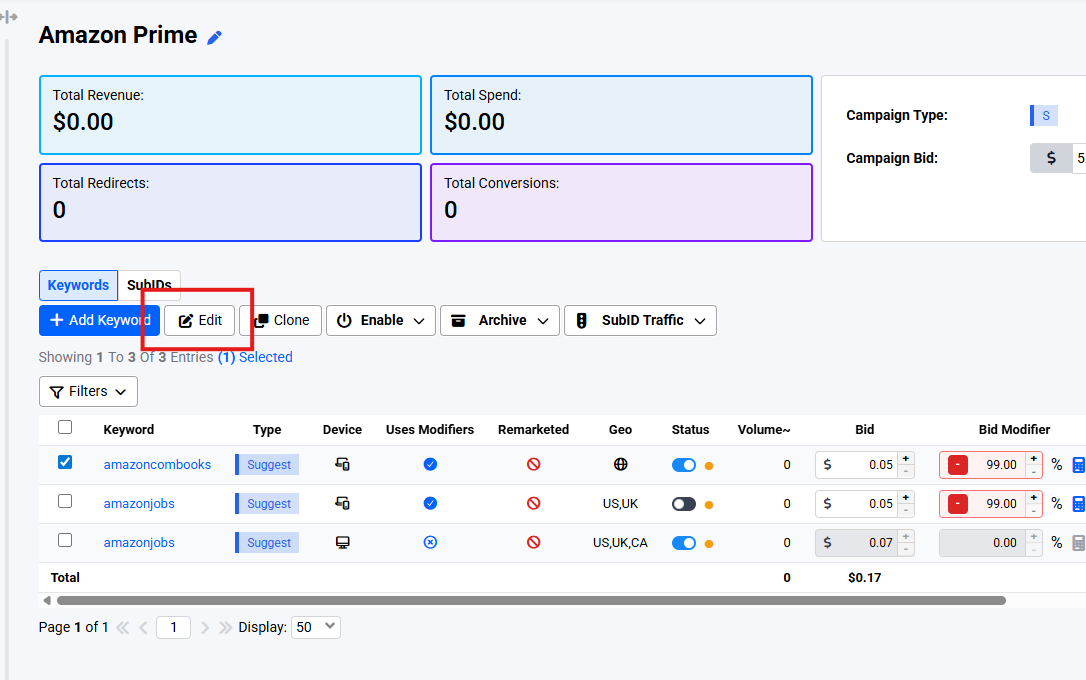
- Open a keyword in the Keywords Report
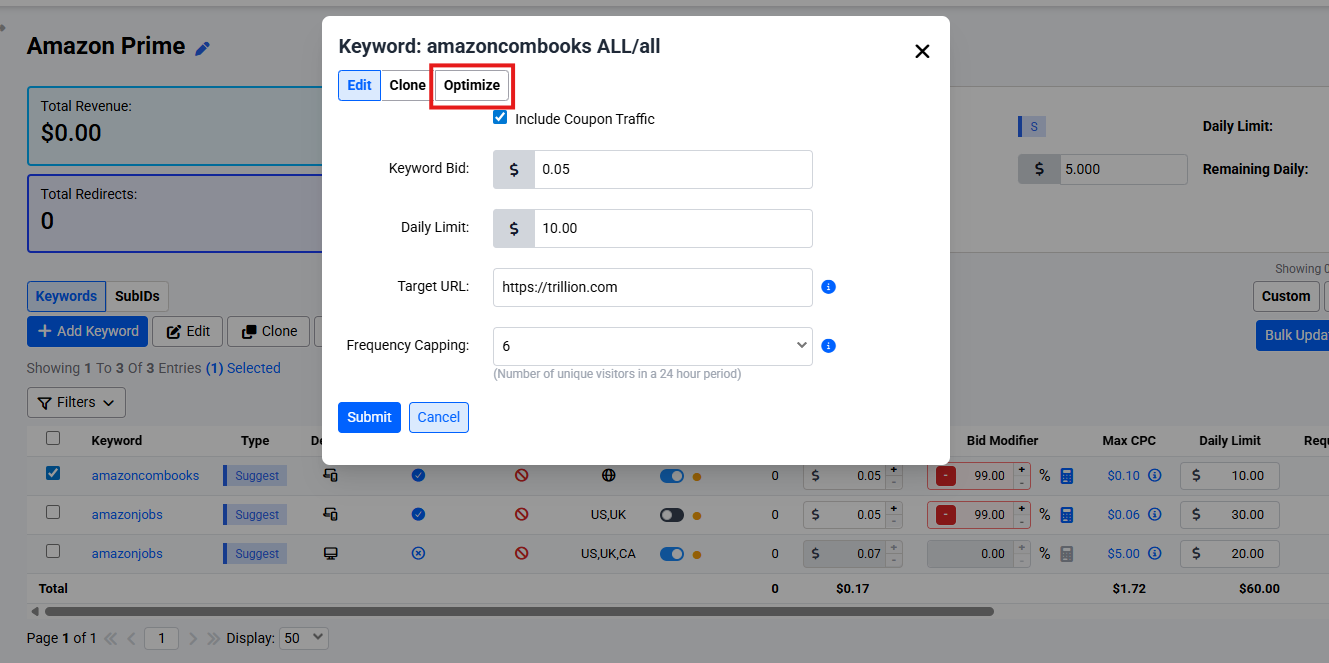
- Go to the Optimize tab
- Find the "Enter SubID/s:" text area
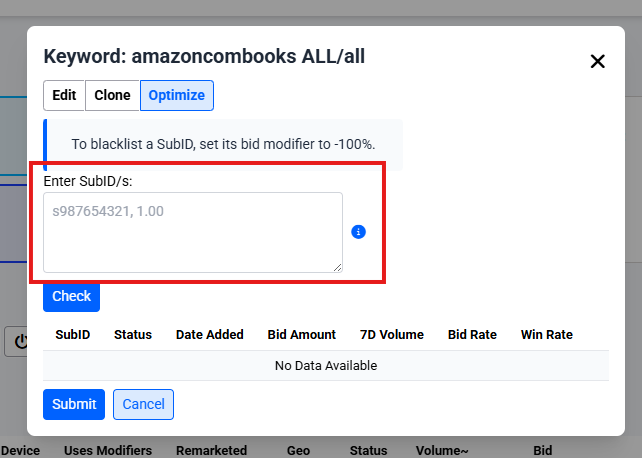
Input Format
You can enter one SubID per line. Each line can include:
- SubID with a bid modifier or bid amount (e.g., s987654321, 1.00 or s987654321, 50%)
- Inputting only the SubID will set the bid amount to the current campaign bid and 0.00% bid modifier as default. (e.g., s987654321)
Format Examples
For Suggest SubIDs:
s987654321, 1.00
s987654322, 0.50
s987654323, 50%
s987654324, -50%
For Direct SubIDs:
1234567890, 1.00
1234567891, 0.50
1234567892, 50%
1234567893, -50%
Understanding Bid Modifiers vs. Bid Amount
Bid Modifiers (Percentage Format)
- Format: percentage with % (e.g., 50%)
- How it works: adjusts the campaign bid by the percentage
- Example: If your campaign bid is $1.00 and you enter 50%, the resulting bid is $1.50
Bid Amount (Dollar Format)
- Format: dollar value without % (e.g., 1.00)
- How it works: sets the exact bid amount for the SubID
- Example: Entering 1.00 sets the bid to $1.00
Note: Both formats are available for all keywords. Choose the one you prefer. The system automatically converts between formats as needed. If you enter a dollar amount for a keyword that uses bid modifiers, the system will calculate the equivalent bid modifier percentage based on your campaign bid.
Using the Feature
Step 1: Enter SubIDs
- In the "Enter SubID/s:" text area, enter your SubIDs (one per line)
- Include bid modifiers or bid amounts as needed
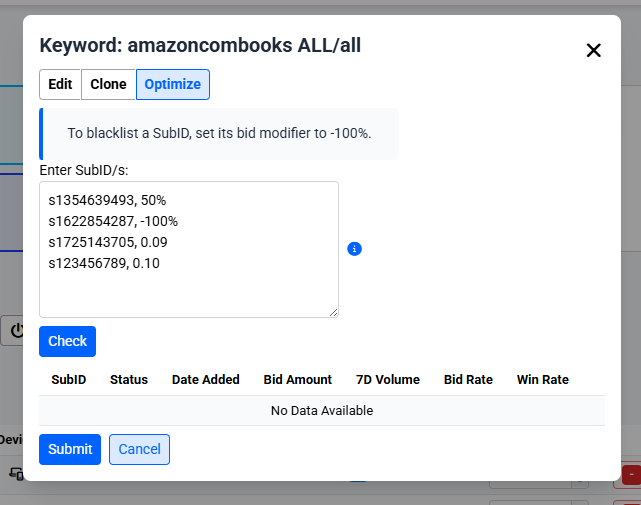
- Click the information icon (ℹ️) next to the field for format examples
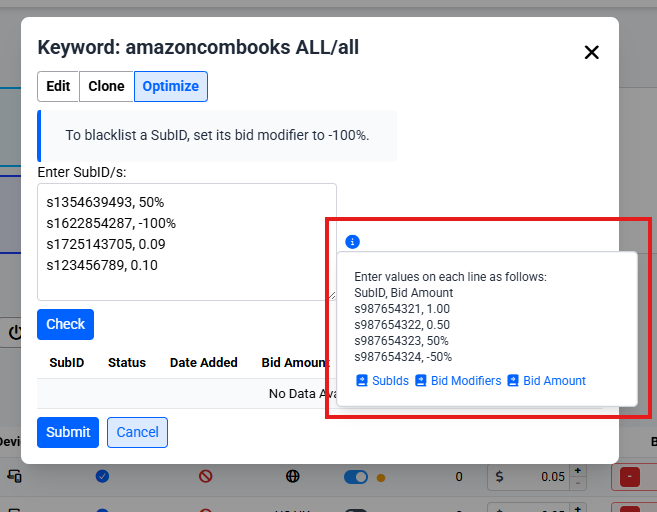
Step 2: Validate SubIDs
- Click the "Check" button
- The system validates each SubID
- Validated SubIDs appear in the table below with a blue background
- Note that these values haven't been saved yet
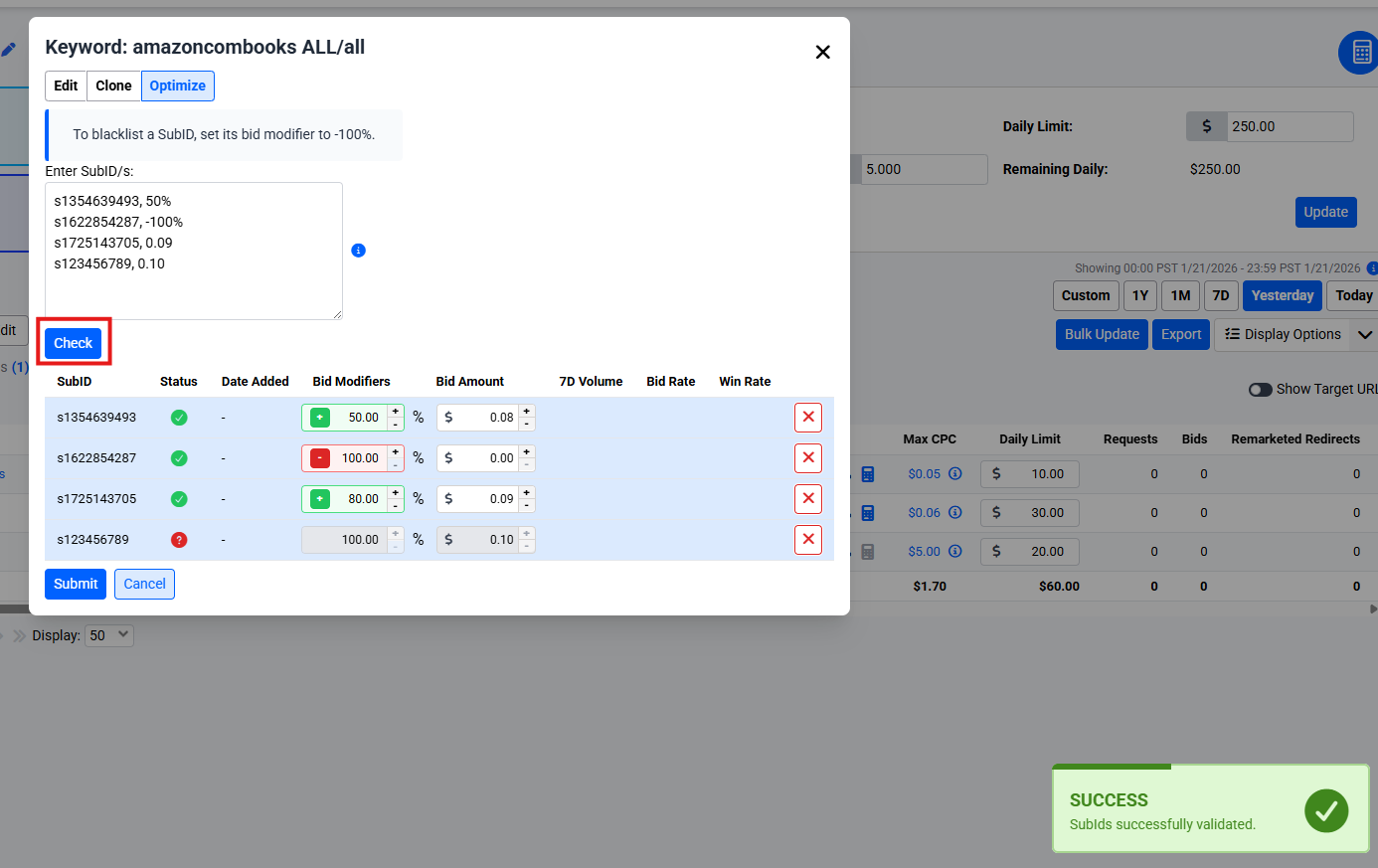 Once clicked on "Check", validated SubIDs will appear below in the table and a successful validation message appears
Step 3: Review the Table
The table shows:
- SubID: The SubID you entered
- Status: ✓ (valid) or ? (needs attention)
- Date Added: When the SubID was first added
- Bid Modifiers: Editable percentage (if supported)
- Bid Amount: Editable dollar amount
- 7D Volume: Traffic volume for the last 7 days
- Bid Rate: Percentage of requests that resulted in bids
- Win Rate: Percentage of bids that resulted in redirects
Step 4: Edit Values (Optional)
- Bid modifiers column: Click to edit the percentage modifier
- Bid amount column: Click to edit the dollar amount
- Changes are saved when you click "Submit"
Step 5: Submit Changes
- Click "Submit" to save all changes
- A success message confirms the save
- The table refreshes with updated values
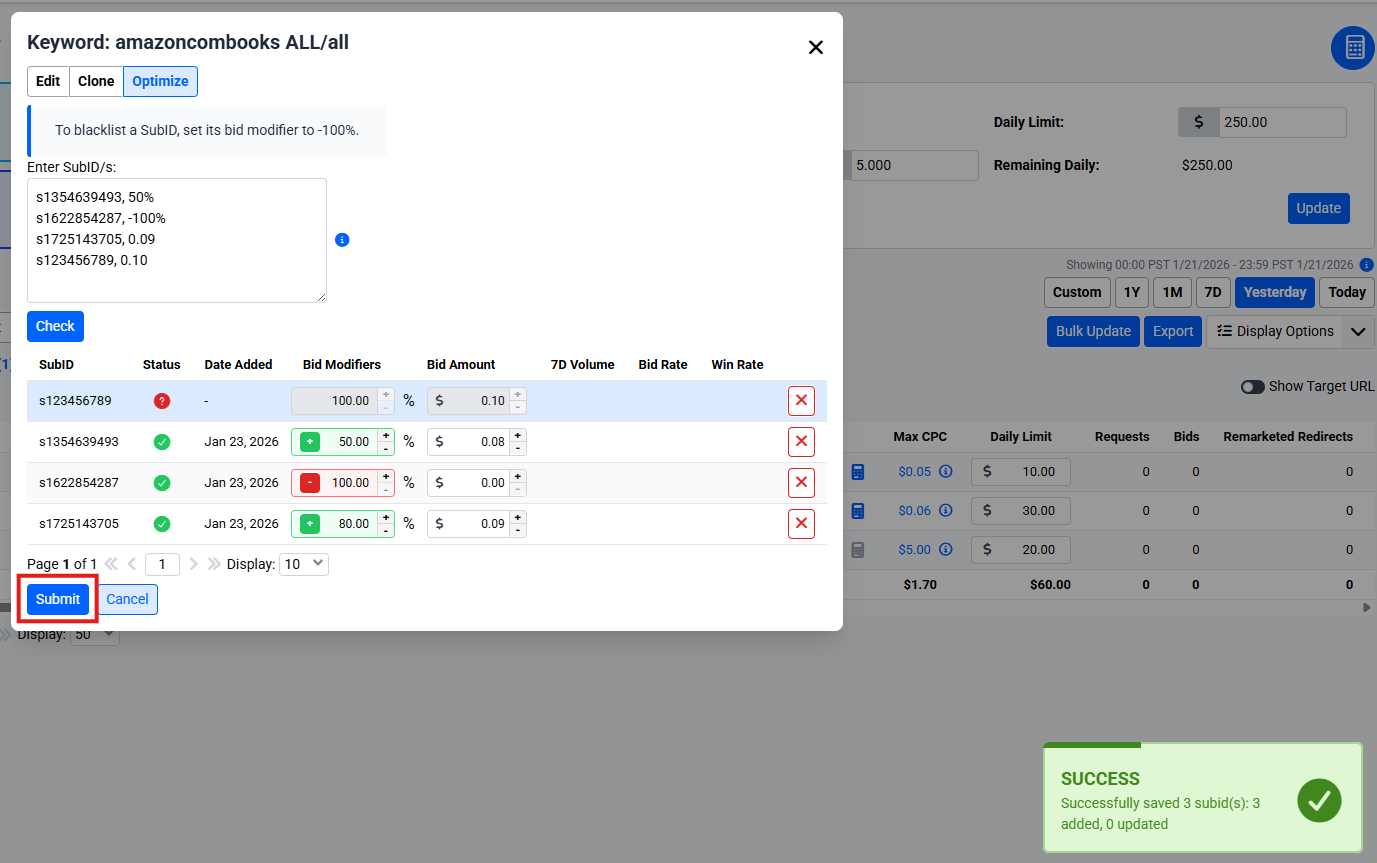 The table now shows the saved SubIDs with one SubID not saved with the (?) status
Tips and Best Practices
- Bulk Entry: Enter up to 50 SubIDs at once
- Mixed Formats: You can mix bid modifiers and bid amounts in the same entry
- Choose Your Preference: Use whichever format you prefer, dollar amounts or percentages.
- Blacklisting: Set a bid modifier to -100% to effectively blacklist a SubID
 A SubID that is blacklisted
5. Editing: You can edit values directly in the table after validation
6. Removing SubIDs: Click the [X] button in the table to remove a SubID
Troubleshooting
SubID shows a question mark (?)
- The SubID may be invalid or not found
- Hover over the icon to see the error message
- Check the SubID format and ensure it exists
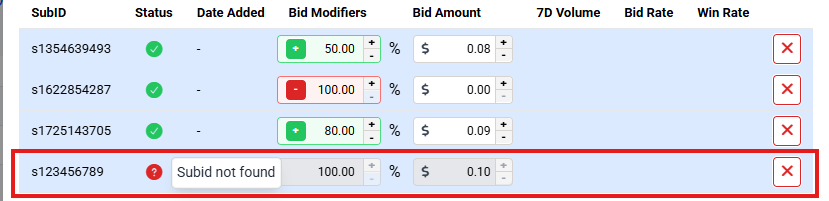
Bid Modifiers column is hidden
- Your keyword doesn't support bid modifiers.
- Use the Bid Amount column instead or contact your account manager to enable this.
Changes aren't saving
- Ensure you click "Submit" after making changes
- Check for validation errors in the Status column
SubID appears grayed out
- The SubID is no longer no longer valid to receive traffic from
- Hover over the SubID to see more details
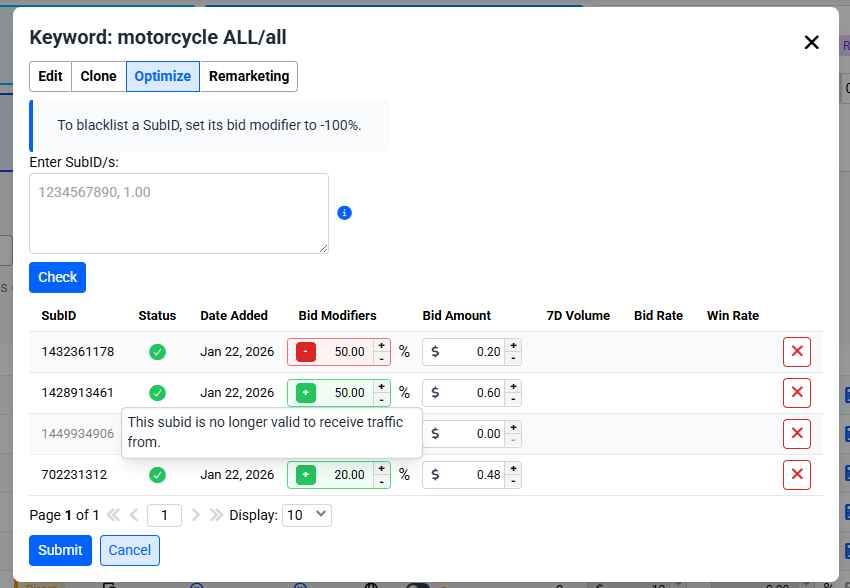 List of SubIDs with one SubID no longer valid to receive traffic from
Related Documentation
- Bid Modifiers: Detailed guide on bid modifiers and calculations