---
title: Bid Modifier
description: Bid Modifier
---
[Skip to content](https://support.trillion.com/bid-modifier#main-content)
[](https://www.trillion.com/)
- PRODUCTS
Show submenu for PRODUCTS
- [PRODUCTS & BRAND SEARCH](https://www.trillion.com/#Product-Brand-Search)
- [Browser Search](https://www.trillion.com/#Product-Brand-Search)
- [BNPL](https://www.trillion.com/#Product-Brand-Search)
- [Coupon](https://www.trillion.com/#Product-Brand-Search)
- [CONTENT & CONTEXTUAL](https://www.trillion.com/#Content-Contextual)
- [Tiles](https://www.trillion.com/#Content-Contextual)
- [Email](https://www.trillion.com/#Content-Contextual)
- [Content Links](https://www.trillion.com/#Content-Contextual)
- [Contextual Ad Block](https://www.trillion.com/#Contextual-Ad-Block)
- COMPANY
Show submenu for COMPANY
- [About Trillion](https://www.trillion.com/company.html)
- [Trillion Brands](https://www.trillion.com/brands.html)
- [Blog](https://www.trillion.com/blog)
- [Our Team](https://www.trillion.com/our-team.html)
- [Careers at Trillion](https://www.trillion.com/careers.html)
- [CONTACT](https://www.trillion.com/contact.html)
- [LOGIN](https://www.trillion.com/login.html)
Open main navigation
Close main navigation
- PRODUCTS
Show submenu for PRODUCTS
- [PRODUCTS & BRAND SEARCH](https://www.trillion.com/#Product-Brand-Search)
- [Browser Search](https://www.trillion.com/#Product-Brand-Search)
- [BNPL](https://www.trillion.com/#Product-Brand-Search)
- [Coupon](https://www.trillion.com/#Product-Brand-Search)
- [CONTENT & CONTEXTUAL](https://www.trillion.com/#Content-Contextual)
- [Tiles](https://www.trillion.com/#Content-Contextual)
- [Email](https://www.trillion.com/#Content-Contextual)
- [Content Links](https://www.trillion.com/#Content-Contextual)
- [Contextual Ad Block](https://www.trillion.com/#Contextual-Ad-Block)
- COMPANY
Show submenu for COMPANY
- [About Trillion](https://www.trillion.com/company.html)
- [Trillion Brands](https://www.trillion.com/brands.html)
- [Blog](https://www.trillion.com/blog)
- [Our Team](https://www.trillion.com/our-team.html)
- [Careers at Trillion](https://www.trillion.com/careers.html)
- [CONTACT](https://www.trillion.com/contact.html)
- [LOGIN](https://www.trillion.com/login.html)
- [GET STARTED](https://www.trillion.com/request-demo.html)
[GET STARTED](https://www.trillion.com/request-demo.html)
How can we help you?
- There are no suggestions because the search field is empty.
1. [Trillion.com Knowledgebase](https://support.trillion.com/?hsLang=en)
2. [New Features](https://support.trillion.com/new-features?hsLang=en)
# Bid Modifier
Bid modifiers allow users to adjust their bid based on various factors such as a keyword or SubID. The campaign bid serves as the base bid which is then combined with the appropriate bid modifiers.
The calculation for the resulting bid is as follows:
```
Note: BM = bid modifier (percentage)Campaign Bid * (1 + Keyword BM / 100) * (1 + SubId BM / 100)For example:Campaign Bid: $1Keyword BM: +50%SubID BM: +30%1 * (1 + 50 / 100) * (1 + 30 / 100)Resulting Bid: $1.95
```
### Blacklisting / Disabling a SubID
By specifying a bid modifier of -100%, the user will block the given subid or keyword (blacklist).
```
For example:Campaign Bid: $1Keyword BM: +50%SubID BM: -100%1 * (1 + 50 / 100) * (1 + -100 / 100)Resulting Bid: $0.00
```
#### Bid Modifier Input
---



When inputting bid modifiers across the various pages, the user can perform the following actions:
1. The user can enter a value directly into the input, specifying the bid modifier percentage value (by default, this is positive)
2. The user can flip the value to negative or positive by clicking on the symbol on the left.
3. The user can press the + or - key as a shortcut to flip the sign.
4. The user can use the + and - buttons on the right to increase or decrease the value
The bid modifier input can have the following **border** colors and each have its own meaning
| Color | Description |
| --- | --- |
| Red | The value is negative |
| Green | The value is positive |
| None | The value is zero |
#### Bid Modifier Calculator
---
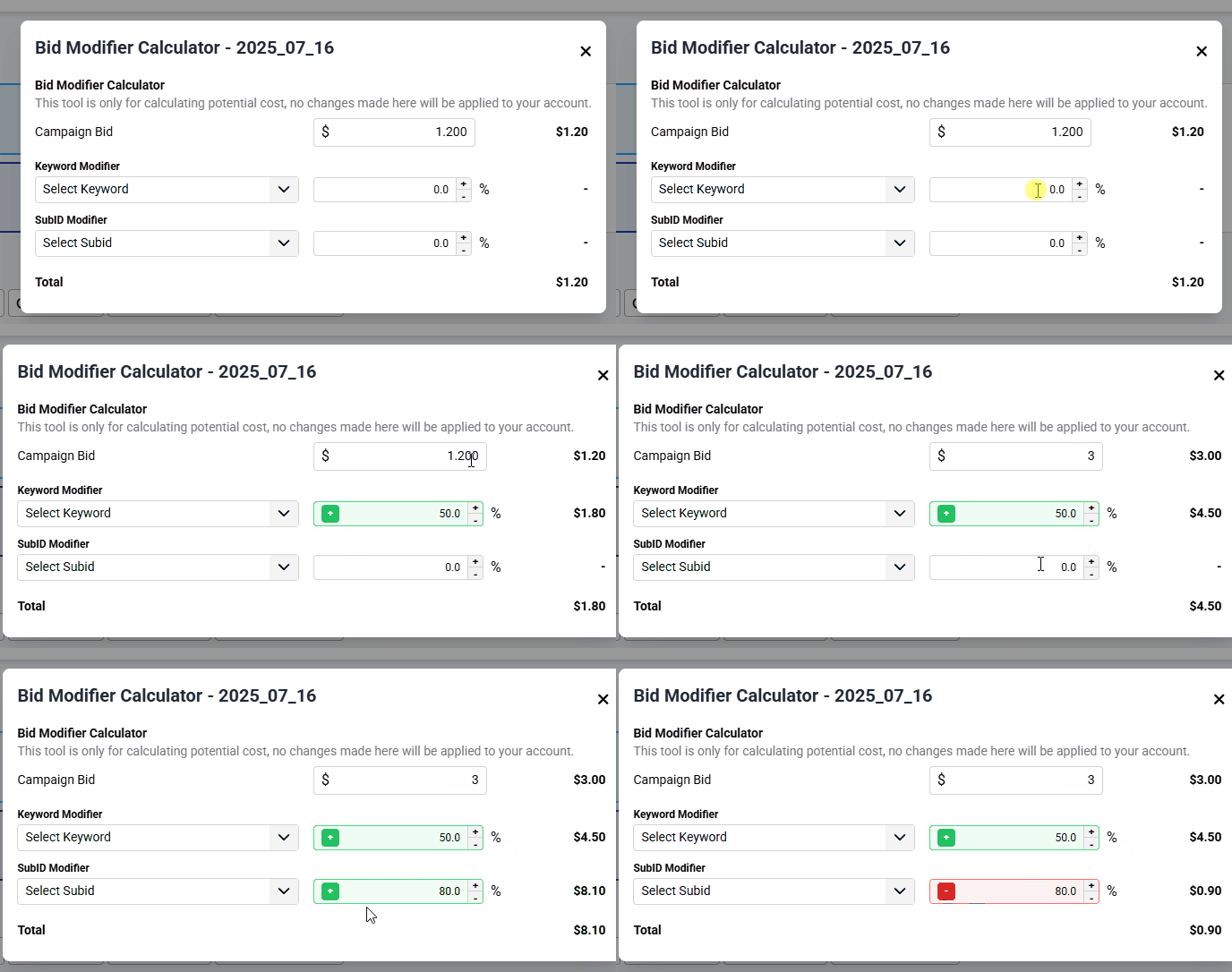
The bid modifier calculator is designed to give the user a preview of the resulting bid that they will be making with the bid modifiers they have set on the different levels.
Note: The calculator itself does not change any values with the user's campaign or verticals.
### Accessing the Calculator
The bid modifier calculator can be accessed via the keywords and subids page in two ways.
The first method is by clicking on the calculator icon to the right of the campaign name header. With this method, the calculator is opened without any preset values.
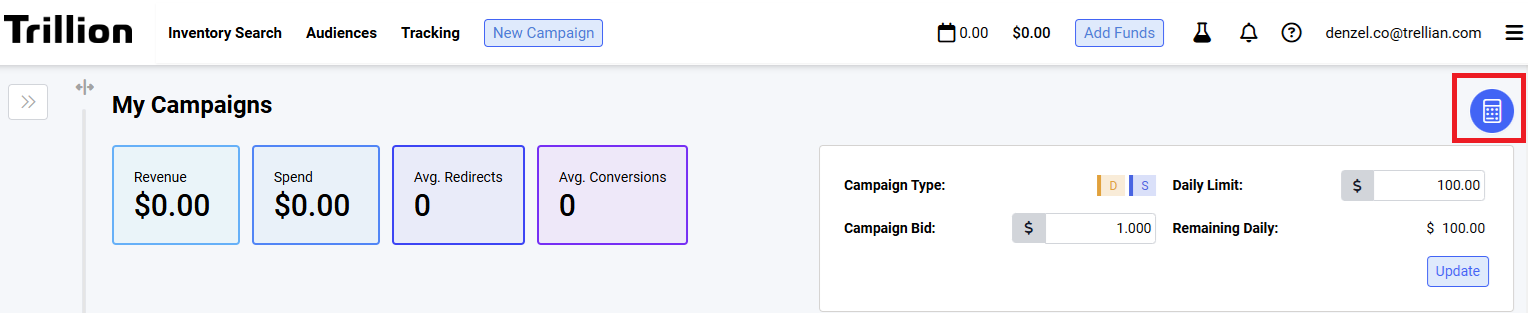The calculator icon to the right of the campaign name header
The second method is by clicking the calculator icon within the bid modifier input table cell. With this method, depending on which page the user is in, some values are pre-filled automatically upon opening the modal.
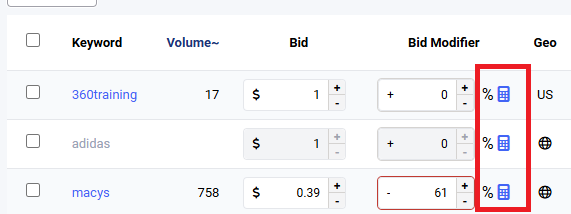
For example, if the user clicks the icon for the above macys keyword, they are presented with the calculator for the keyword macys and its modifier -61% preset to the keyword modifier dropdown field and its corresponding bid modifier input field.
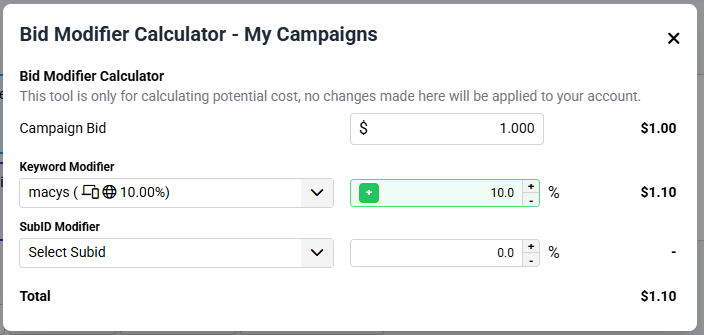
When this is performed for a subid in the subid report, it will preset both the keyword and subid as the SubID report presents line items as subids of a particular keyword.
### Using the Calculator
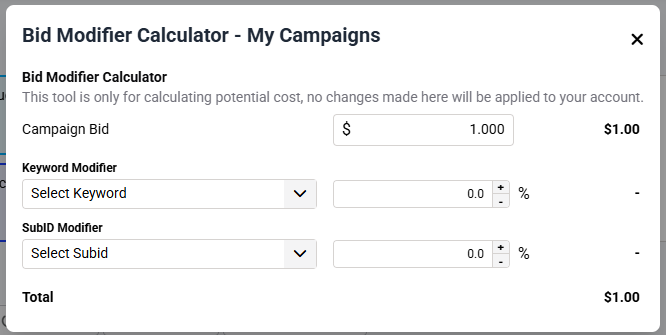
The calculator provides dropdown options for each layer of the campaign:
1. Keyword Modifier
- The keyword modifier dropdown provides lists out the keywords that are contained in particular campaign the user is viewing. Depending on the selection, the bid modifier value on the right will change.
2. SubID Modifier
- The SubID modifier dropdown provides a list of subids that has a bid modifier **explicitly** set by the user. Note that when generating the subid report, subids will always appear based on the traffic the user has received. However, these subids will not appear in the dropdown until the user specifically sets a bid modifier on these subids.
The user may also choose to directly edit the bid modifier percentage value. If the percentage value is overridden, the selected value for keyword or subid dropdown will be automatically cleared out.
- [Campaign](https://support.trillion.com/campaign?hsLang=en)
- [New Features](https://support.trillion.com/new-features?hsLang=en)
- [Reporting](https://support.trillion.com/reporting?hsLang=en)
[](https://www.trillion.com)
8 East Concourse, Beaumaris, VIC, 3193, Australia
[mailto:email@email.com](mailto:email@email.com)
Copyright © 2025, Trillion Pty Ltd
TRILLION COMPANY
[Home](https://www.trillion.com/)
[About Us](https://www.trillion.com/company.html)
[Contact Us](https://www.trillion.com/contact.html)
[Trillion Brands](https://www.trillion.com/brands.html)
[Our Team](https://www.trillion.com/our-team.html)
[Careers](https://www.trillion.com/careers.html)
[Blog](https://www.trillion.com/blog)
[Sitemap](https://www.trillion.com/sitemap.html)
TRILLION PRODUCTS
[Browser Search](https://www.trillion.com/#Product-Brand-Search)
[BNPL](https://www.trillion.com/#Product-Brand-Search)
[Coupon](https://www.trillion.com/#Product-Brand-Search)
[Tiles](https://www.trillion.com/#Content-Contextual)
[Email](https://www.trillion.com/#Content-Contextual)
[Content Links](https://www.trillion.com/#Content-Contextual)
[Contextual Ad Block](https://www.trillion.com/#Contextual-Ad-Block)
OTHER TRILLION SERVICES
[Domain Marketplace](http://www.above.com/marketplace/)
[Domain Parking](http://www.above.com/)
[Domain Registrations](http://www.above.com/registrar/)
[Manage Customer Reviews](https://addme.com/)
[Local SEO Services](https://beontop.com/)
[Website Hosting](https://www.help.com/)
[Safe Browser](https://www.domainshield.com.au/)
LEGAL
[Terms of Use](https://www.trillion.com/terms.html)
[Privacy Policy](https://www.trillion.com/privacy.html)
[Advertiser Terms and Conditions](https://www.trillion.com/advertiser-terms-and-conditions.html)
[Subscribe To Newsletter](https://www.trillion.com/)
Copyright © 1997 - Trillion.com Pty Ltd - All Rights Reserved.