
Introduction
Inventory Search is a feature that lets users quickly find Direct keywords from our existing list, organized into categories and sub-categories. It's designed to make it easy to search for keywords that match what you're looking for.
After finding and selecting a keyword, you can add it to an existing campaign folder or manage it using the tools provided. This helps you keep your campaigns organized and makes it easier to work with keywords that are already available in the system.
User Interface
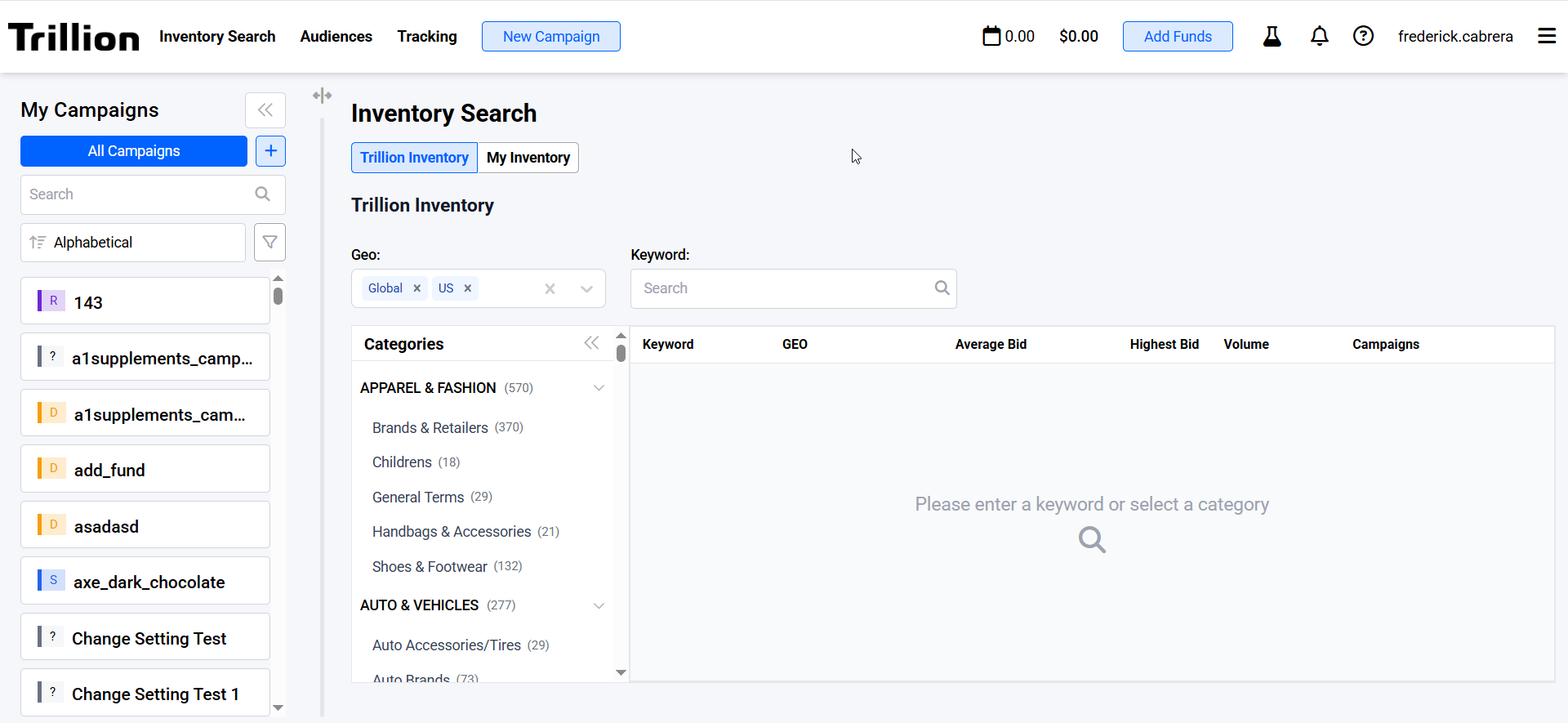 Image 1. Shows the landing page of Inventory Search
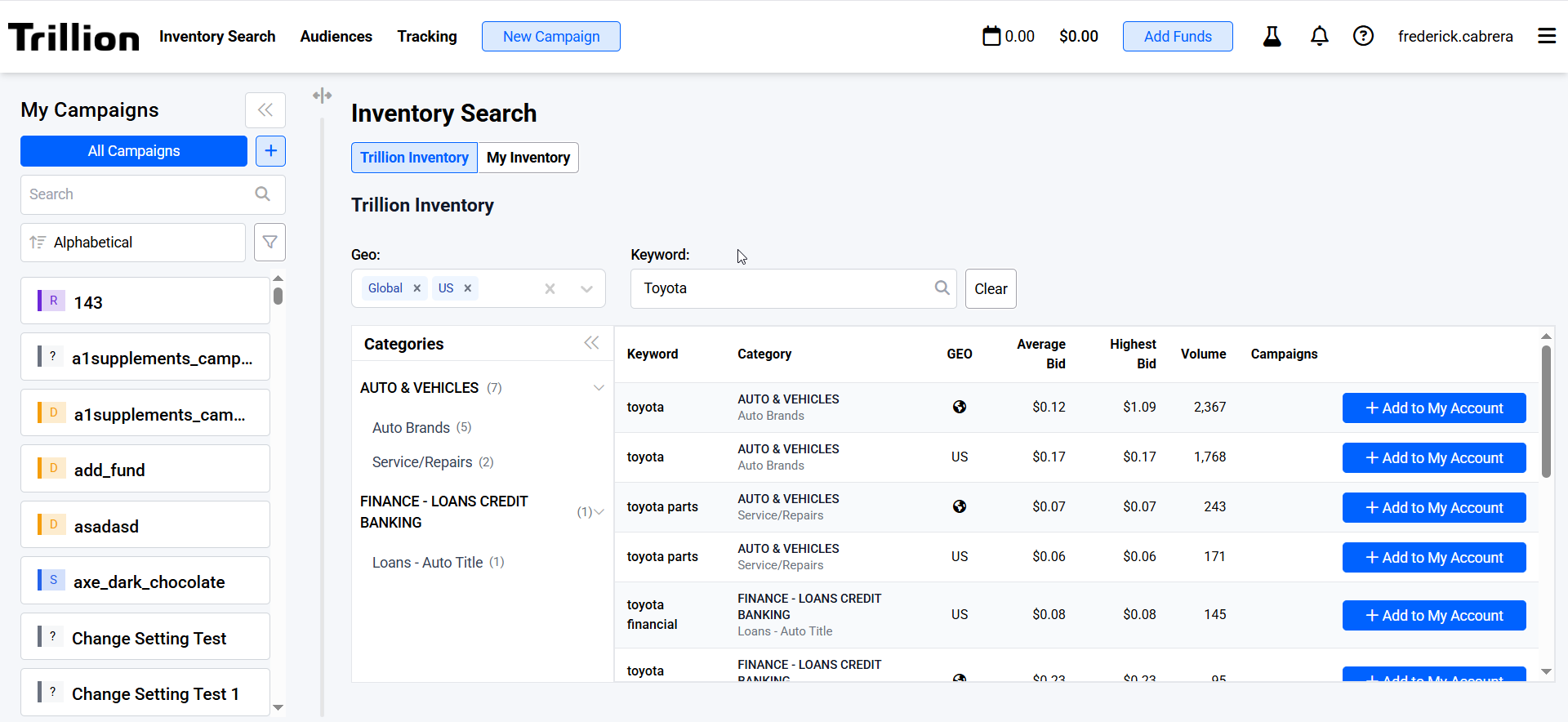 Image 2. Shows the search results for the given keyword
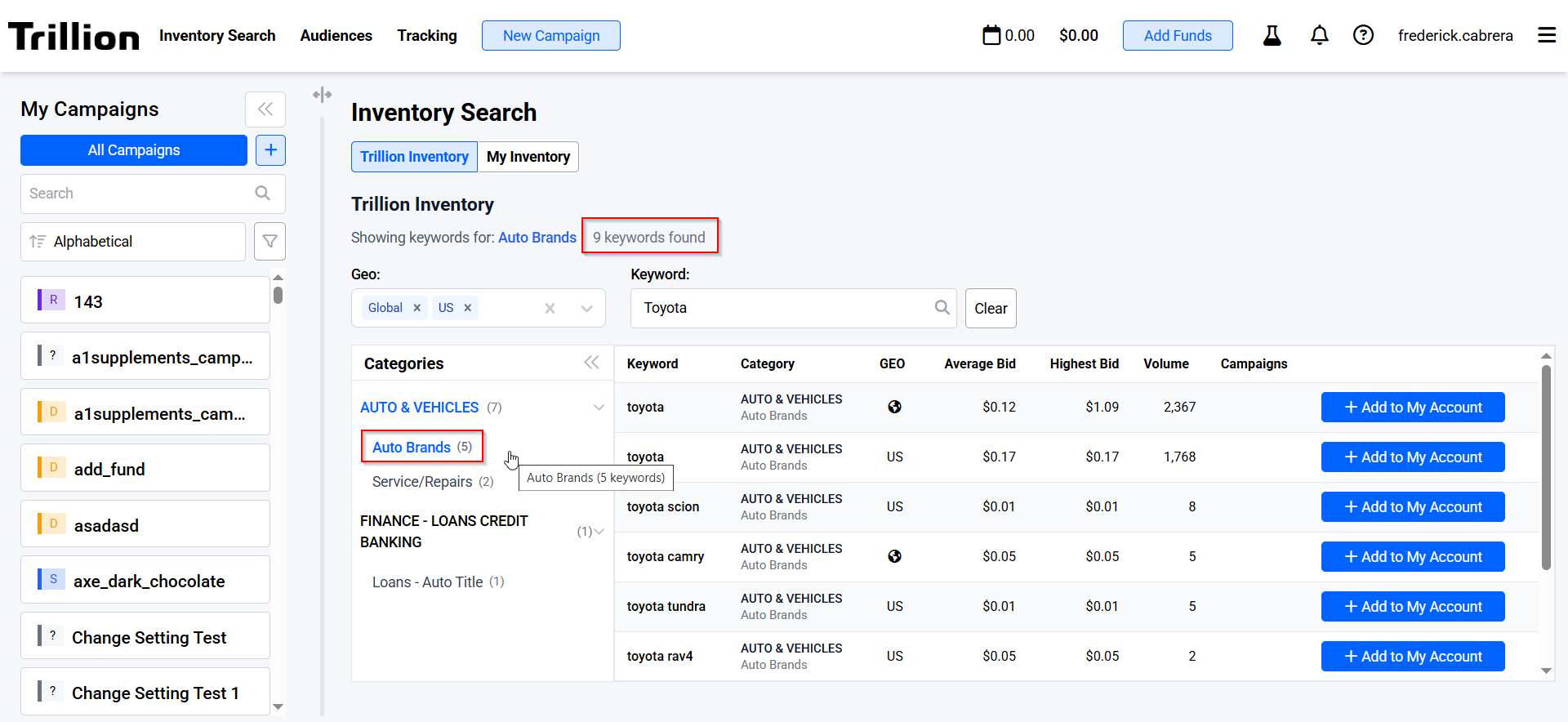 Image 3. Shows the total keywords count when sub-category is clicked
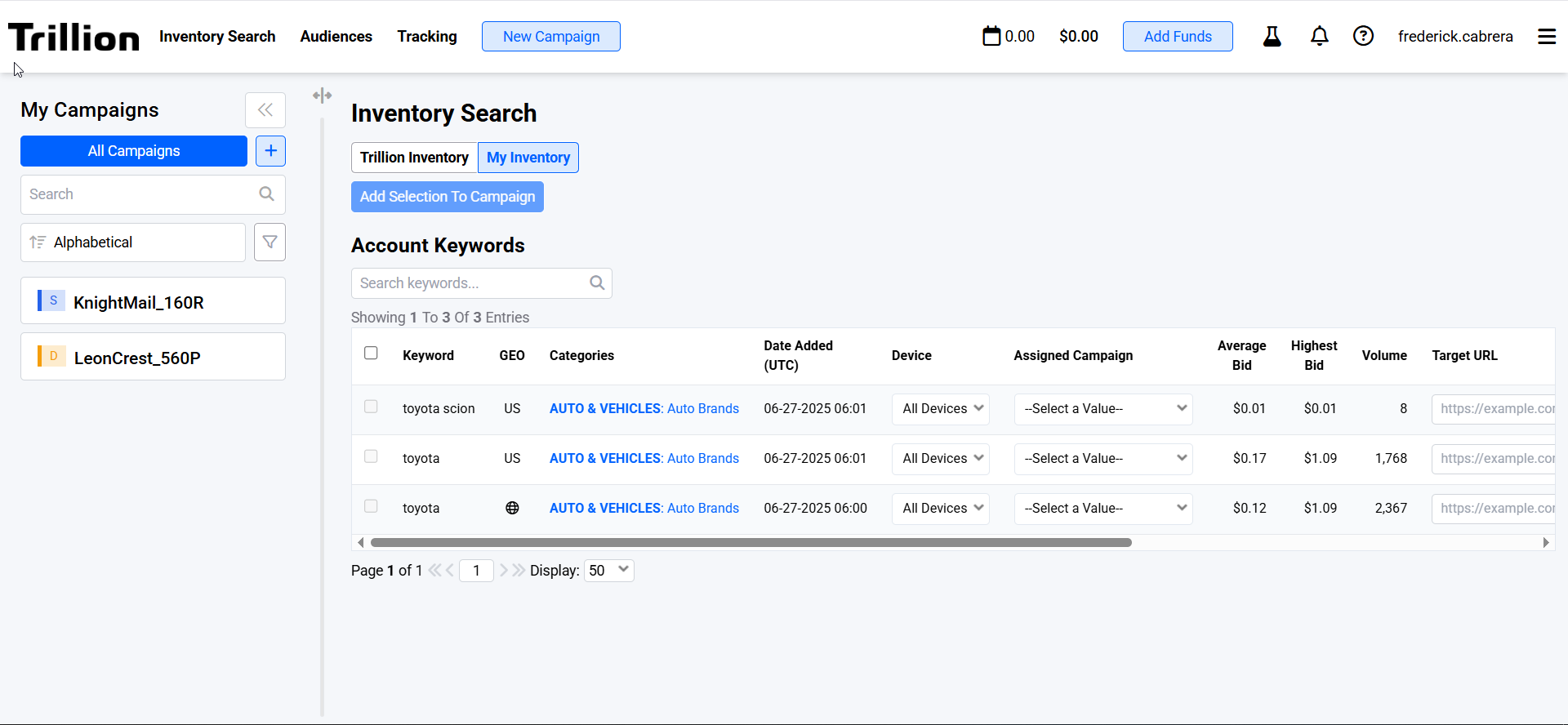 Image 4. Shows the My Inventory landing page.
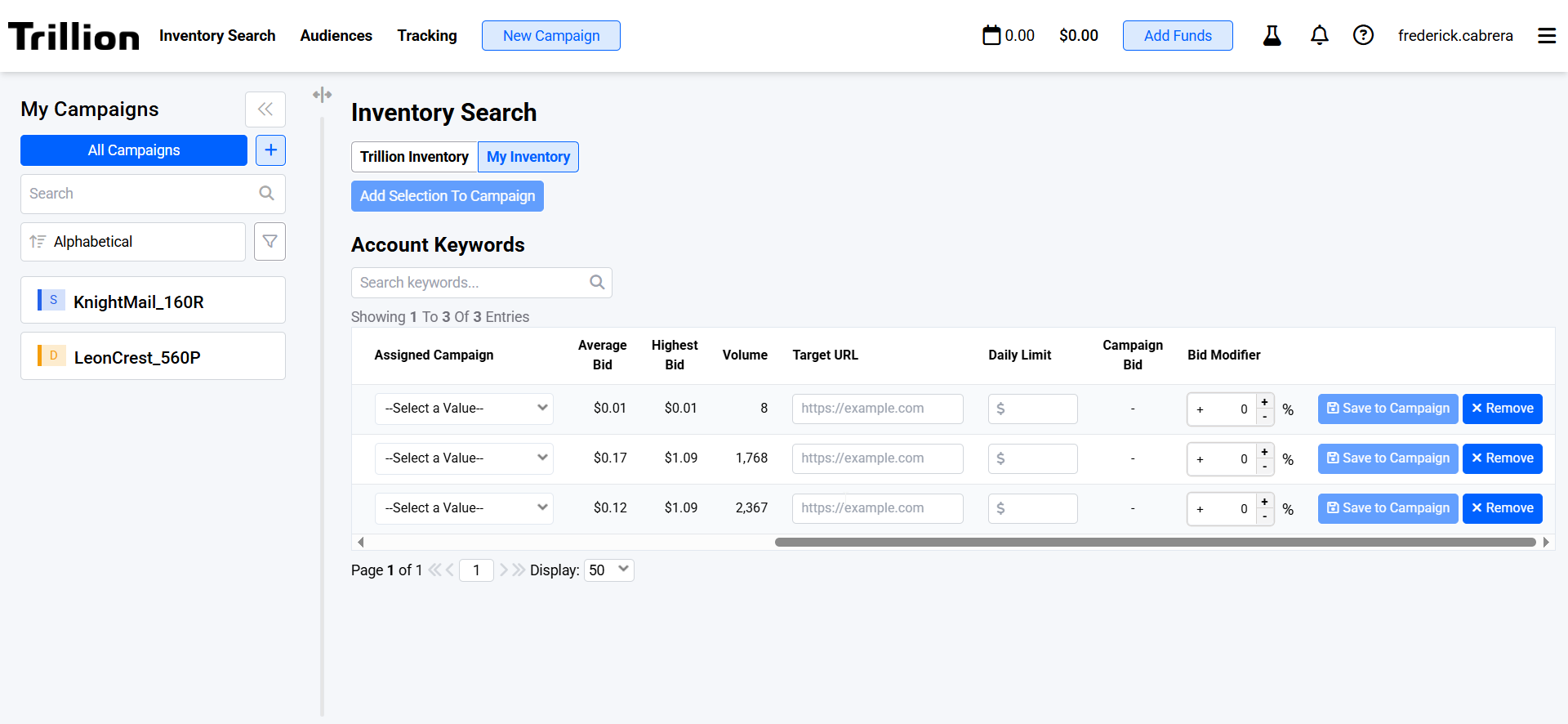 Image 5. Shows the required fields to be filled out by users.
Features
| Feature | Description |
|---|---|
| Trillion Inventory |
|
| My Inventory |
|
Table Columns
Trillion Inventory Tab
| Column name | Data type | Description |
|---|---|---|
| Keyword | Text | Display the keyword. |
| Category | Text | Displays the category name where the keywords belong to. |
| Geo | Text | Displays the geo targeting bound to the keyword. |
| Average Bid | Numeric | Average of all recorded bid values for the keyword. |
| Highest Bid | Numeric | Highest amount of bid recorded for the keyword. |
| Volume | Numeric | Displays the computed traffic volume for the keyword. |
| Action buttons | Displays the Add to My Account button that allows users to move the selected keyword into their own inventory. |
My Inventory Tab
| Column name | Data type | Description |
|---|---|---|
| Keyword | Text | Display the keyword. |
| Geo | Text | Displays the geo targeting bound to the keyword. |
| Category | Text | Displays the category name where the keywords belong to. |
| Date Added (UTC) | Timestamp | Displays the timestamp when the keyword is added to the My Inventory tab. |
| Device | Text | Renders a dropdown where users can select their desired device to assign to the keyword. |
| Assigned Campaign | Renders a dropdown where users can select from their list of existing campaigns to assign to the keyword. | |
| Average Bid | Numeric | Average of all recorded bid values for the keyword. |
| Highest Bid | Numeric | Highest amount of bid recorded for the keyword. |
| Volume | Numeric | Displays the computed traffic volume for the keyword. |
| Target URL | Text | Renders an input field with URL validation. This input accepts text value. |
| Daily Limit | Numeric | Renders an input field that accepts numeric values only. |
| Campaign Bid | Numeric | Renders an input field that accepts numeric values only. |
| Bid Modifier | Numeric | Renders an input field that accepts numeric values only. |
| Action buttons | Renders action buttons: Save to Campaign and Remove. These allow users to either add the keyword to an existing campaign or move it back to the Trillion Inventory. |