Skip to content
  • There are no suggestions because the search field is empty.

Report Bulk Update

Bulk Update

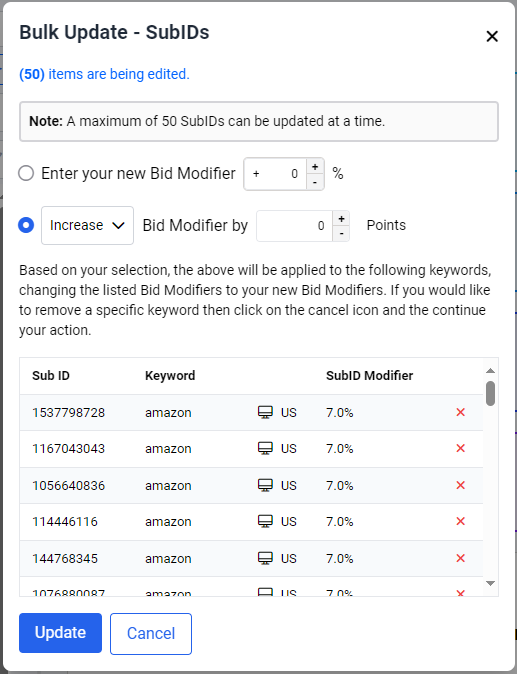
The feature allows users to select multiple rows from the report table and process them based on the selected item. Users can bulk-select items in various ways with either a parent checkbox at the top right of the table allowing selecting all items in the report table, or users can select items individually. However, a special feature is implemented for the SubID Report page. Instead of a parent checkbox that selects all items in the report table, it only selects items per page, stacking up to a maximum limit of 50 item. Several bulk update transactions are available per report page, with their respective use cases and scenarios outlined below.

Use Case Scenario Steps
Archive The user wants to perform a mass archiving/unarchiving of campaign under their account
  • Clicking the Archive dropdown button when at least one or more rows are selected will display two options, Archive and Unarchive.
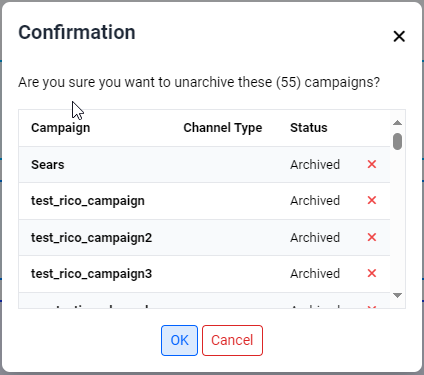
  • Clicking the Archive/Unarchive option when at least one or more rows are selected will open a modal that displays the selected row details.
  • If the user clicks the OK button, selected items will be archived/unarchived after a page refresh.
Campaign Report - Bulk Update Use Case
Use Case Scenario Steps
Enable The user wants to perform a mass enabling/disabling of selected items from the report table
  • Clicking the Enable dropdown button when at least one or more rows are selected will display two options, Enable and Disable.
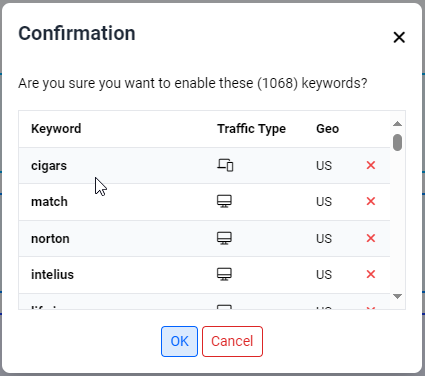
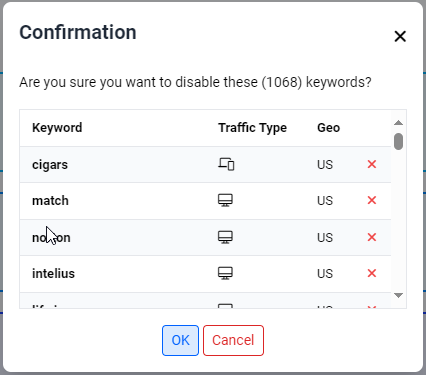
  • Clicking either Enable or Disable option when at least one or more rows are selected will open a modal that displays the selected row details.
  • If the user clicks the OK button, selected items will be enabled/disabled after a page refresh.
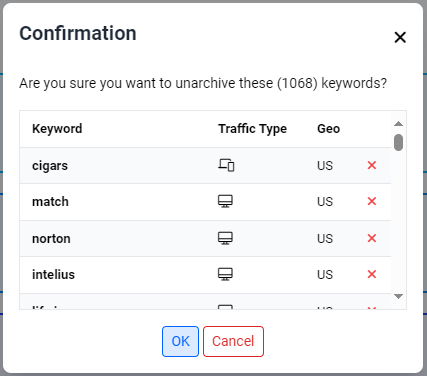
Archive The user wants to perform a mass archiving/unarchiving of keywords under a selected campaign.
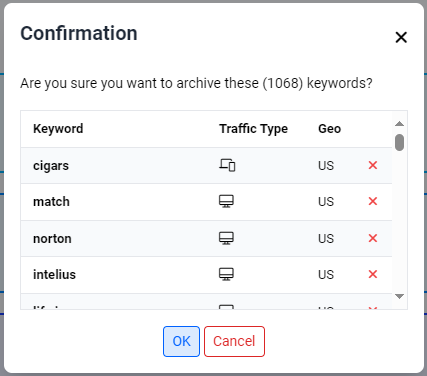
  • Same use case as campaign report archival
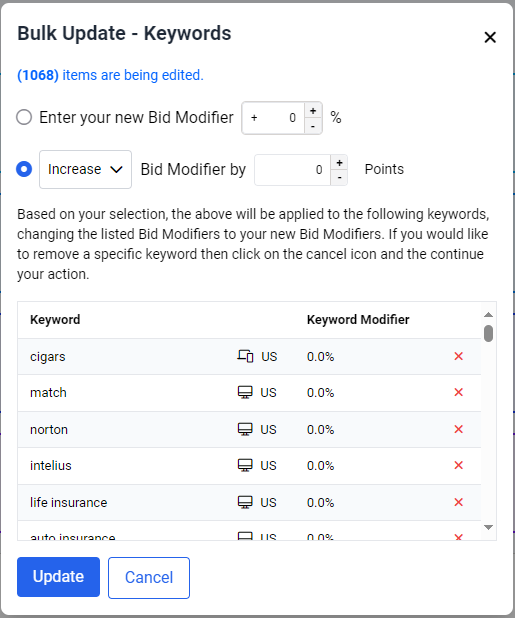
Bulk updating keyword modifiers The user wants to perform a mass update of the keyword modifiers under a selected campaign.
  • Clicking the Bulk Update button when at least one or more rows are selected will open a modal displaying the selected row details in a table format. The modal also contains two radio buttons with an input field, allowing users to choose either to totally overwrite the modifier value or to increase/decrease the current modifier value by a certain amount.
  • If the user clicks the Update button, the selected modifiers will be updated accordingly, a success message will be returned, and the page will be refreshed.
Keyword Report - Bulk Update Use Cases
Bulk Transaction Scenario Steps
Bulk updating modifiers The user wants to perform a mass update for the SubID modifiers under a selected campaign.
  • Same use case as keyword report bulk updating modifier
Bulk Updating Bid Modifier Validations

Bulk Update User Interface

Following are the user interfaces for the bulk update feature.
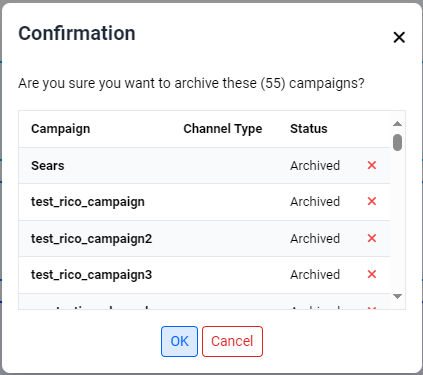
Campaign Report Bulk Archiving Modal
Campaign Report Bulk Unarchiving Modal
Keyword Report Bulk Enabling Modal
Keyword Report Bulk Disabling Modal
Keyword Report Bulk Archiving Modal
Keyword Report Bulk Unarchiving Modal
Keyword Report Bulk Updating Modifiers Modal
SubID Report Bulk Updating Modifiers Modal


Copyright © 1997 - Trillion.com Pty Ltd - All Rights Reserved.