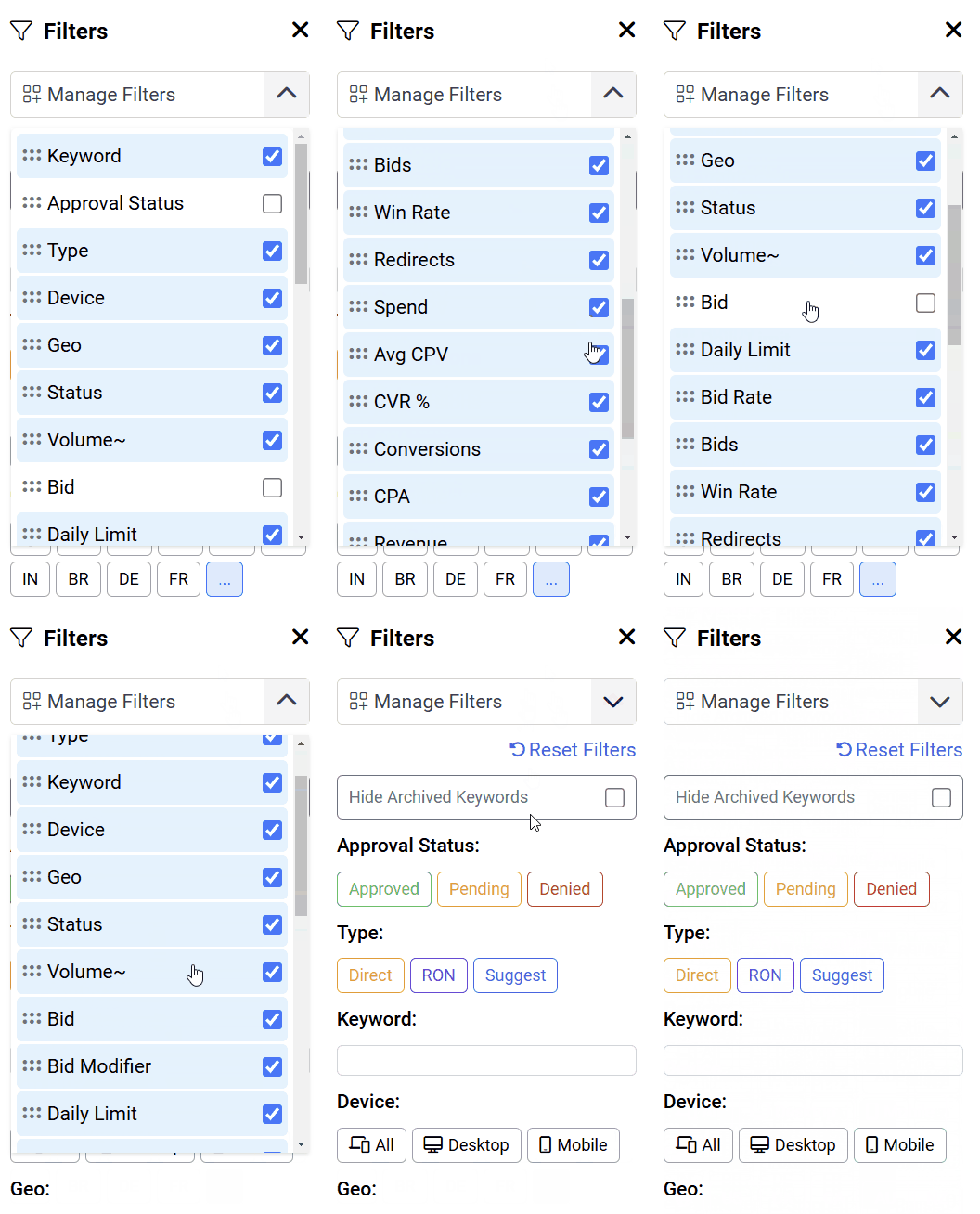
The report pages and the side navigation bar provide a way to filter on the report. Each module has their own set of filters. These filters are accessible on the upper left corner of the table.
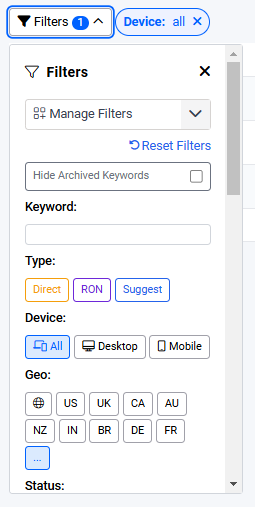
- Upon focusing out of the popup, the page will automatically reload with the specified filters applied. The Side Navigation Bar will also automatically fetch for the campaigns that match the specified filters.
- A numerical indicator is placed beside the pop up button indicating number of filters currently applied on the report or side nav campaigns.
- Filters are persisted in the side navigation bar and should show the same result set as the last search the user has made. Persistence is on the account level so different browsers and devices will affect each other.
- On the report pages, applied filters are included in the URL which allows the user to revisit the same applied filters by using the same link.
Filter Display
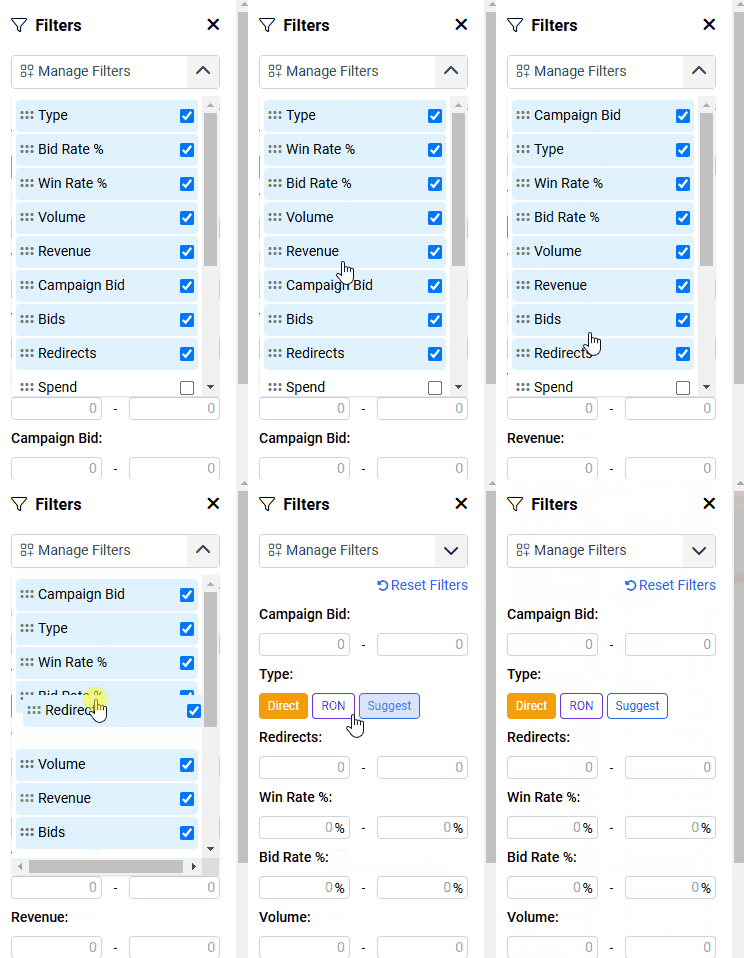
Due to the large number of filters available, a manage filters dropdown has been provided to let the user control the filters that should be displayed as well as how they should be ordered.
For example, the image below enables only win rate, bid rate and type filters.
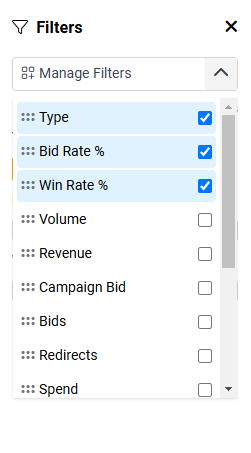
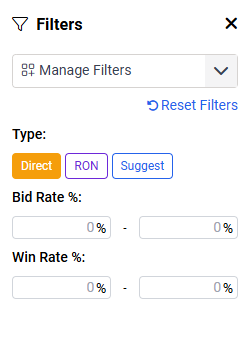
The visibility settings of the filters are persisted and will be tied directly to the each user's account.
Ordering
The user can rearrange the ordering of the filters by clicking and
dragging the filter options inside the dropdown.
Persistence
- Options are persisted independently for each module. For example the user can choose to hide the volume filter in the keywords page but have it visible in the side navigation bar.
- Persistence is also applied on the account level so each user can freely define the configuration that best works for them.
- Persistence is done via the database. Relogging in or using a different device should still load the same configuration for the user and module
Filter Pills
When the user has applied filters on the report they appear as pills beside the filter dropdown. Clicking on the x icon on the right removes the filter and causes the report to refresh reapplying any filters left.

Depending on the type of filter, the filter pill display differently. Please see next section for this
Type of Filters
Text Filters
- These filters allow the user to freely enter a search term. Results are then matched based on the supplied value. Only one search term is allowed at a time
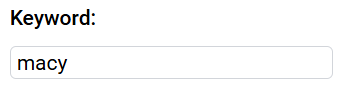
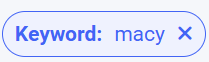
- This filter accepts partial matching. For example specifying macy will still show macys keyword
- It currently requires ordering to match. For example, car red will not match against a value red car.
Range Filters
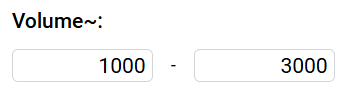
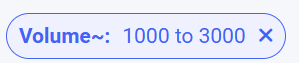
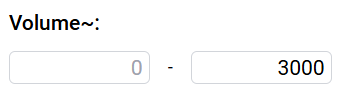
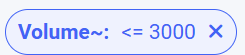
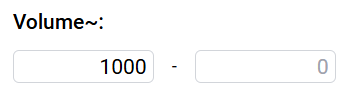
- These filters allow the user to specify a value range to filter against. This is mainly used for numerical fields or column. This is also the most common type of filter
- It is not required to state both the max and minimum value
- This filter is inclusive of the specified min and max value
| Description | Filter Fields | Filter Pill |
| Both min and max value specified |
|
|
| Only the max value is specified |
|
|
| Only the min value is specified |
|

|
List Filters
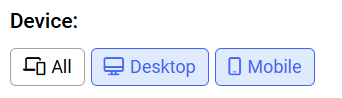
- These filters accept multiple values and will filter will filter values that have either one of the specified values

Multiple Filters
When multiple filters are applied together. They will filter against values that meet all the criteria of the specified filters.

The above filters will filter values that have:
- Macy in their keyword
- AND have a device targeting of desktop OR mobil
- AND have a volume of at least 1000
Resetting Filters
Clearing the Values
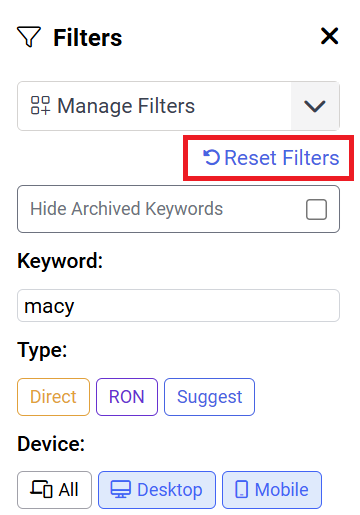
The user can clear the values of all their applied filters by clicking on the reset filters button below the manage filters dropdown
Resetting ordering, values and visibility
The user can reset the filter settings they have by clicking on the reset button placed at the end of the dropdown contents.
Clicking this will:
- Reset the ordering of the filters to the default
- Clear all of the filter values
- Re-enable all of the filters